Knowledge base How to View and Manage myInsight Software Licensing Agreements
By Insight Editor / 12 Nov 2020
The Software Licensing Agreements feature — which was formerly called My software licensing — provides an in-depth view into existing and recently expired licensing agreements across your entire organization.
What’s new in the Software Licensing Agreements feature?
We’ve recently made design improvements that simplify the overall user experience to help improve contract management.
These updates include:
- Visual enhancements to highlight existing features
- Organizing licenses by vendor
- Expired contract views
- Expand all/collapse all contracts
Accessing Software Licensing Agreements
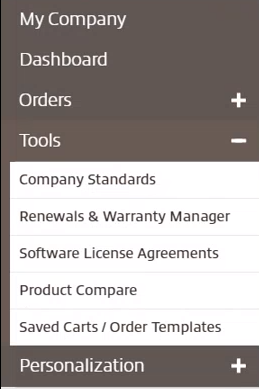
After logging in to your myInsight account, within the left-side secondary navigation menu, select Tools then Software License Agreements.
What’s in the Software Licensing Agreements feature?
Depending on your organization’s contract types there are two permission views you can access within the Software Licensing Agreements feature — software licensing agreements and hosted licensing agreements.
Software licensing agreements view
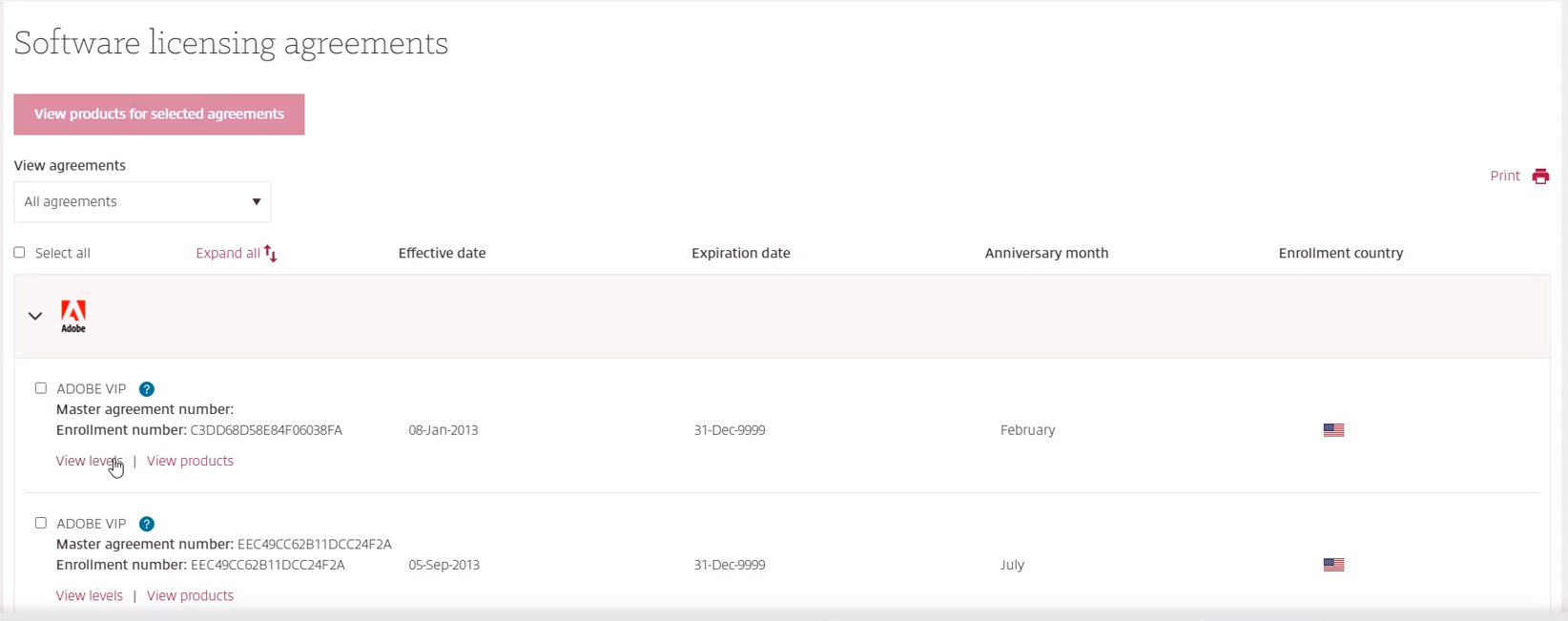
The software licensing permission view lets you explore active licenses by country and manufacturer within your organization. Expired licenses are also available in the feature for up to 90 days. When viewing an expired license, you can easily contact your account executive to renew the license.
Hosted licensing agreements view
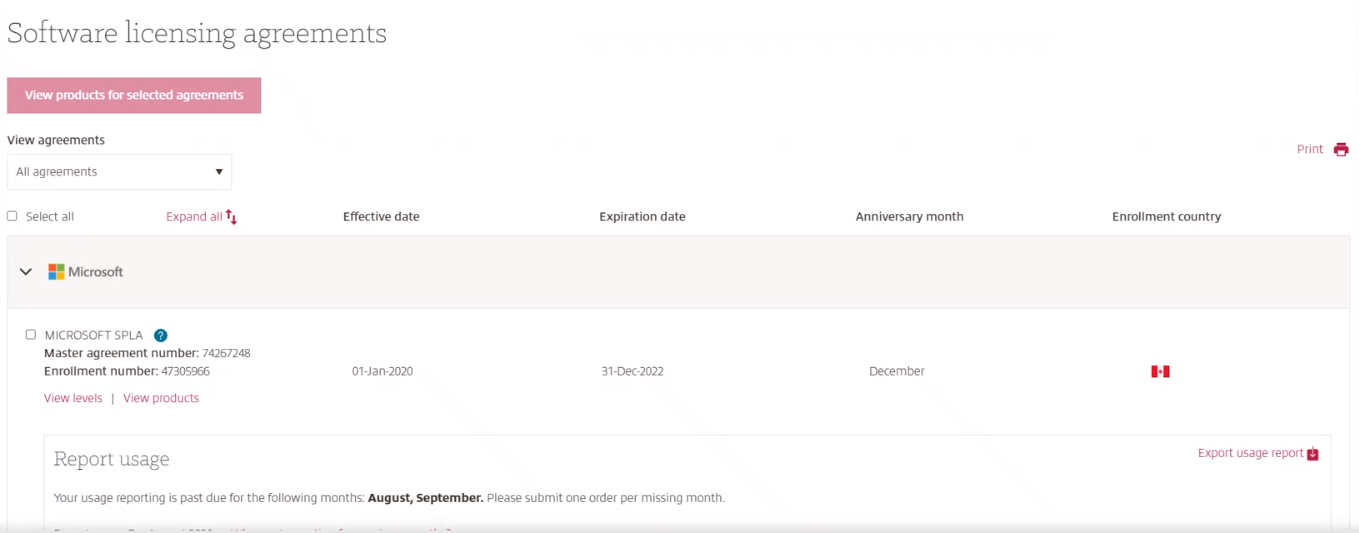
Then, there’s the hosted licensing permission where you can report the usage of existing agreements, such as a Microsoft Service Provider License Agreement (SPLA). When a contract expires, you can contact your hosted licensing specialist to begin the renewal process.
Software Licensing Agreement capabilities
Within the Software Licensing Agreement, there are several options to help you navigate your existing contracts. Each contract is organized by its publisher, so you can view all Adobe, IBM or Microsoft contracts within one dropdown.
At the top of the menu, you can also view by all agreements, active agreements, expired agreements and pending agreements.
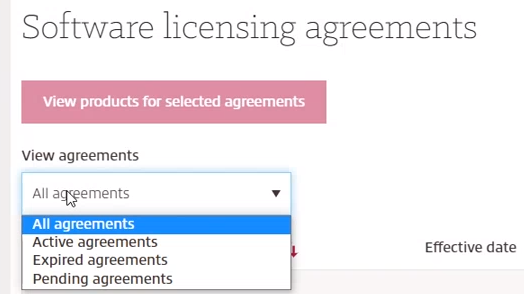
Within in each contract view, there are three options to select to review the contract:
- The blue question mark will display a summary of what the agreement includes.
- View products shows what products are included in that agreement.
- View levels displays the license levels within that agreement.

When a contract is expired, you’ll have the option to contact your rep for assistance.

Improve your software lifecycle.
We’ll help you solve your toughest software challenges with our services aimed at optimizing costs, simplifying management and increasing return on investment.