Knowledge base Insight Renewals Hub User Guide
By Insight Editor / 17 Jul 2025 / Topics: Featured
This user guide provides a comprehensive overview of how to access and navigate the Insight Renewals Hub, an online tool created to simplify the process of software license renewals and reporting. Within the Renewals Hub, you can easily access renewals through insight.com, perform advanced searches across multiple vendors, customize your views, and automate reporting.
Additionally, you have the ability to submit renewal quote requests directly to your account team. For a detailed walkthrough, please refer to the instructions provided below.
Getting Started
Logging in
To access the Renewals Hub, an existing insight.com account is required. If you already have an Insight account, you automatically have access. Should you encounter any issues, please reach out to eCommerce@insight.com for assistance.
Once you have been provided with access to the Renewals Hub, you will be able to access it through the following methods:
- Log into insight.com

- You will see a menu on the left (Account Tools).

- Expand Tools and click on Renewals Hub.

Navigation
Once logged in, use the navigation bar at the top to navigate the application.

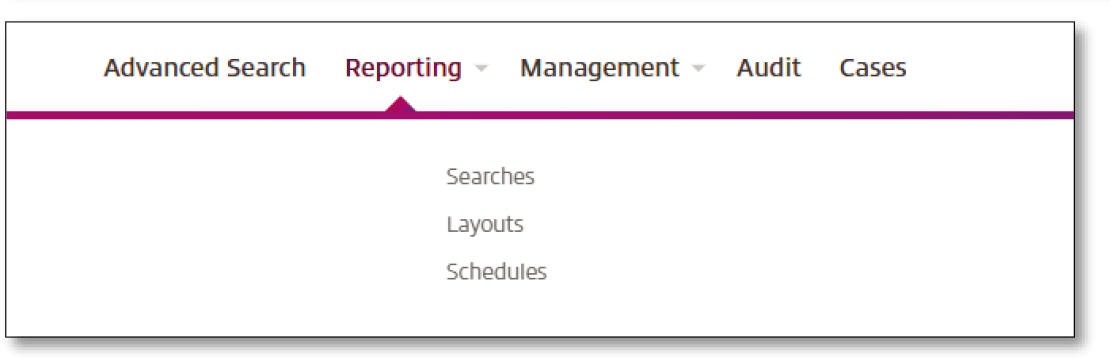
Some features can be accessed by clicking on the feature in the navigation bar where a dropdown will appear.
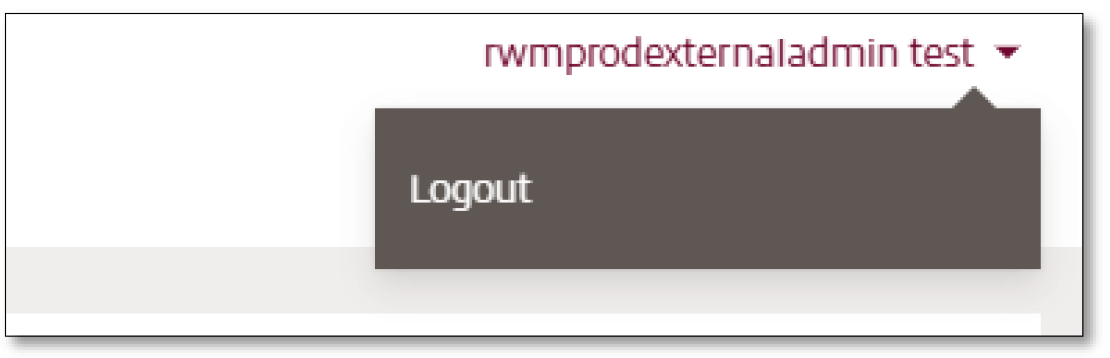
User login details are displayed in the top right corner of the Hub, where you can also log out.
Centralized Dashboard
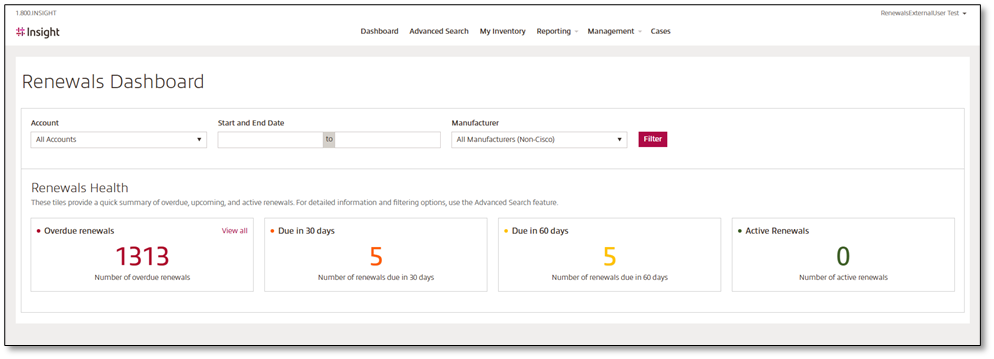
Renewals Hub offers a centralized dashboard that gives you full visibility of upcoming and overdue renewals.At the top, you can filter data by Account, Date Range, and Manufacturer, allowing for tailored views based on your specific needs. The Renewals Health provides an at-a-glance summary of critical renewal metrics:
- Overdue Renewals: Displays the total number of overdue items
- Due in 30 Days: Shows upcoming renewals within the next month
- Due in 60 Days: Lists renewals approaching within two months, enabling proactive planning.
- Active Renewals: Indicates the number of currently active renewals, ensuring clarity on ongoing commitments.
Advanced Search and Report Settings
Advanced Search allows you to search for renewals data using various search filters. You can search by individual manufacturers or multiple manufacturers. Enter a Maintenance time frame for quick and dedicated search results.
With the ability to save your search criteria by clicking Save Search, performing an advanced search is quick and simple. Provide search criteria in any additional fields for a controlled search that narrows results even further. After saving a search, you can select an existing saved search from the dropdown at any time.

After performing a search, you can save your search, and/or export the results via the Download to Excel link.
The reporting section allows you to manage saved searches, create and manage custom column layouts for Advanced Search, and schedule automated reports using your saved searches and layouts for daily, weekly, or monthly delivery to your inbox.


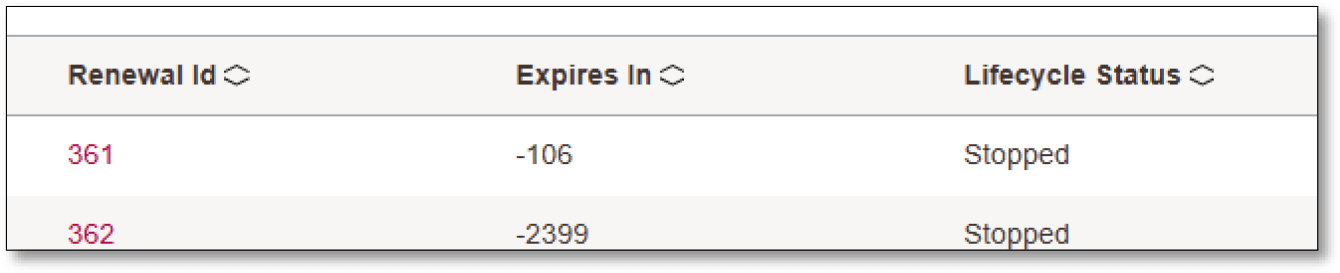
Within your search results, you can also click on an invoice number/Renewal ID (link) which will direct you to another page with additional details.
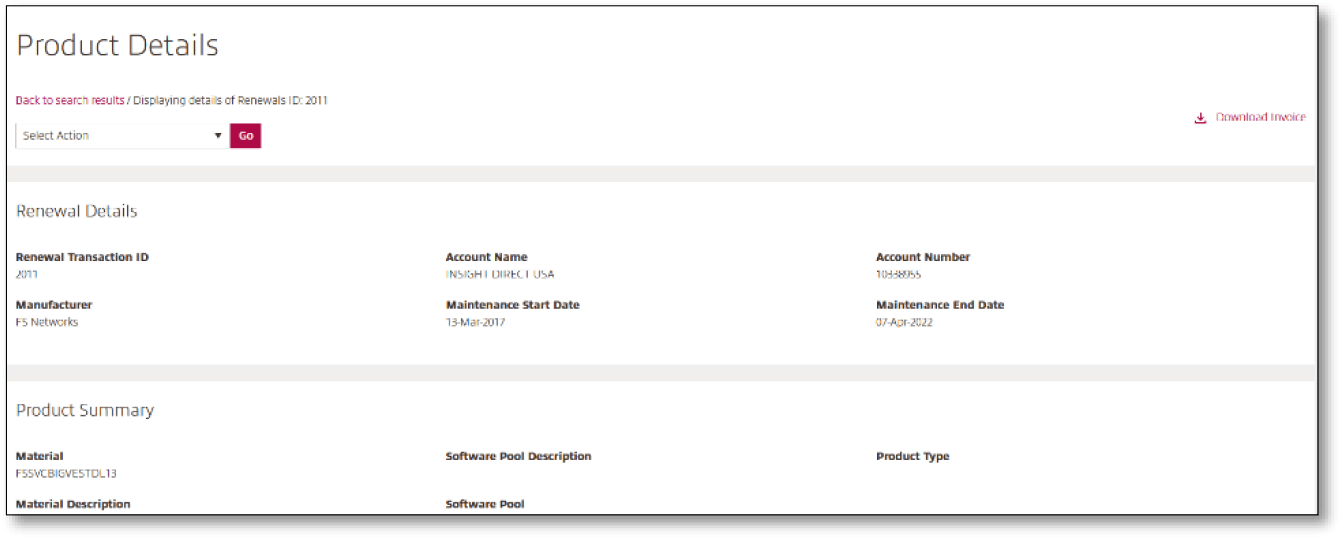
All details are listed out, as well as the ability to carry out the same actions as from the Advanced search feature.
Throughout the tool, you will often see an action dropdown and/or links in the detail pages. This allows you to perform various actions as follows: ⟶
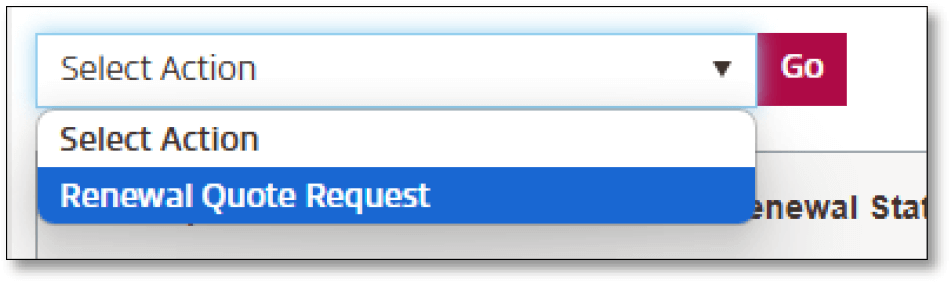
Renewal Quote Request
- Log in to insight.com: Access your insight.com account. Then go to Account Tools > Renewals Hub.

- Perform an Advanced Search: Utilize the advanced search functionality within the platform to locate the specific renewals you wish to request a quote for.

- Dropdown: You will see an action dropdown and select Renewal Quote Request.

- Select Items for Quote: Identify and select the specific items for which you need a renewal quote to initiate the request.

- Upon submission, this request is sent to your account team. You will be provided with a case number for your quote request.